Installation
LeadsMap is installed from a zip package with Chrome Developer Mode. The procedure takes a few minutes and does not require a Chrome Web Store listing or an account.
Requirements
- Google Chrome 88 or later on macOS, Windows, or Linux.
- Permission to turn on Developer Mode in
chrome://extensions.
1. Download the package
Download LeadsMap_Crx.zip from the button below, or from the install page. Keep the file until installation succeeds. Do not download the package from any other site.
2. Unzip the package
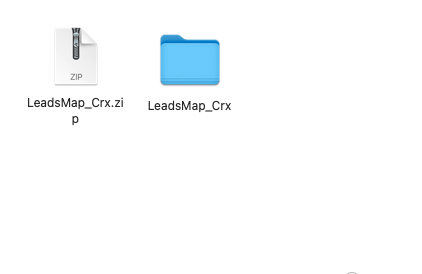
Extract LeadsMap_Crx.zip. On macOS, double-click the file. On Windows, right-click and choose Extract All. The result is a folder named LeadsMap_Crx. That folder must contain manifest.json. Select the folder itself later, not the zip file and not a file inside the folder.
3. Turn on Developer Mode
- Open Chrome and go to
chrome://extensions. - In the top-right corner, turn Developer mode on.
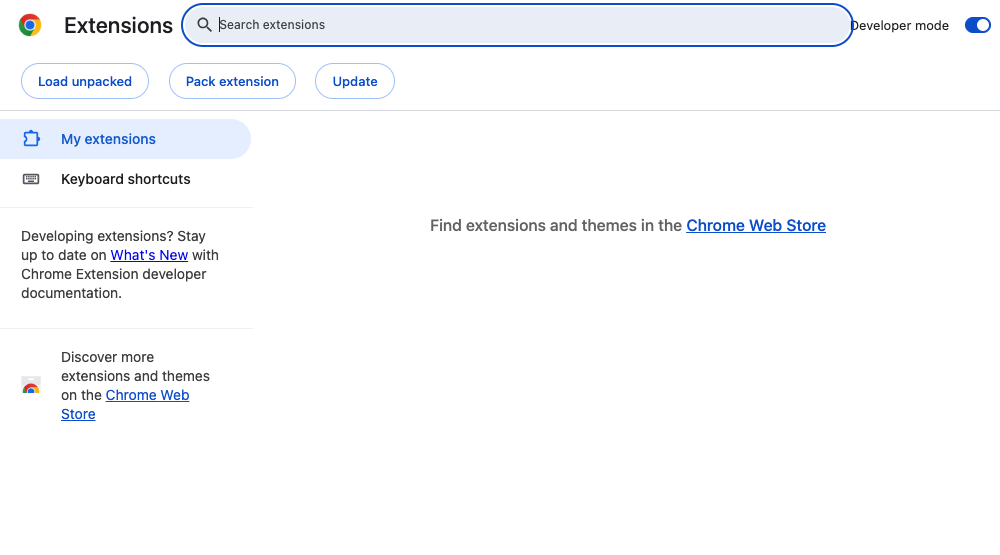
- Confirm that Load unpacked appears in the toolbar. If it does not, reload the extensions page.
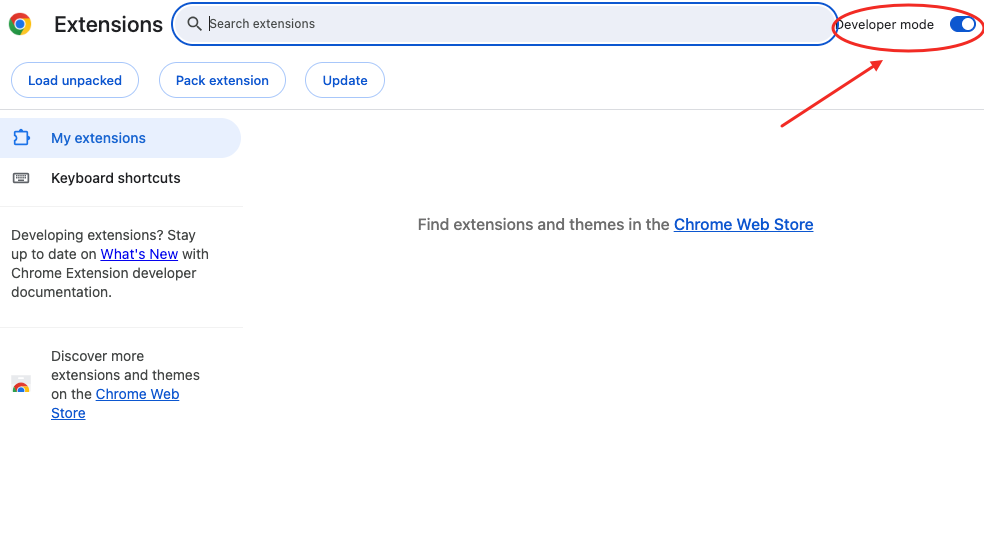
Chrome shows a reminder that Developer Mode is on each time the browser starts. Dismiss the reminder. It is a notice, not an installation failure.
4. Load the unpacked extension
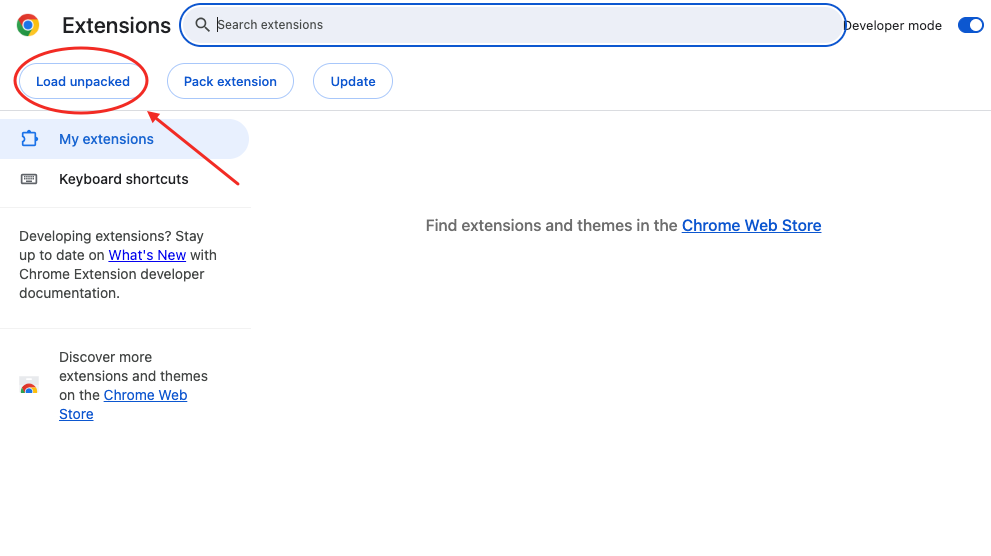
- Click Load unpacked.
- Select the
LeadsMap_Crxfolder you extracted. The folder must be the one that containsmanifest.json.
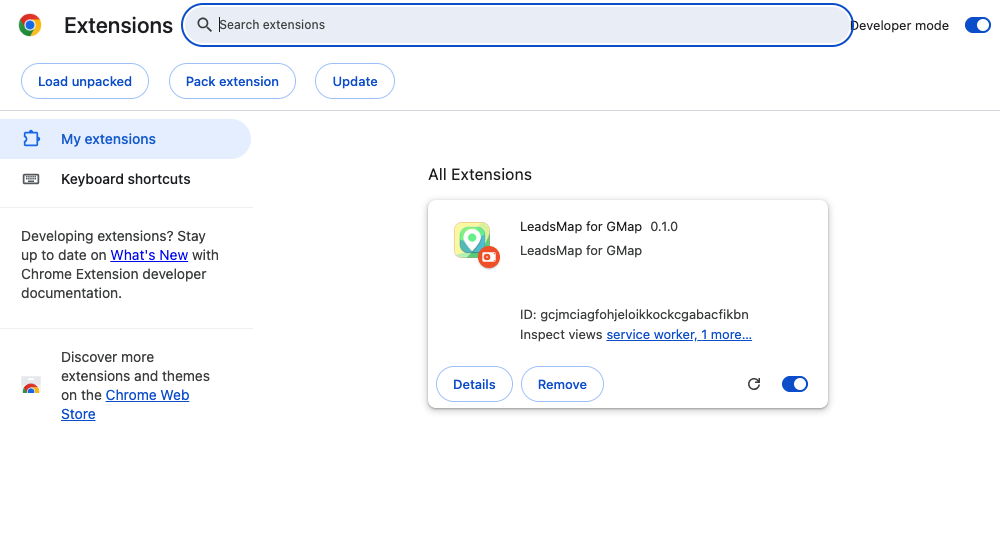
5. Confirm the extension is listed
LeadsMap appears in the extensions list. A red error badge means the wrong folder was selected. Remove that entry, confirm manifest.json is directly inside the folder, and load it again.
6. Pin the extension
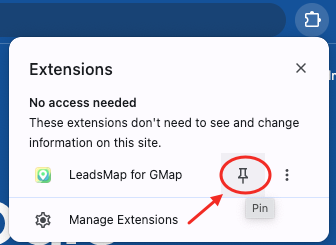
Click the puzzle-piece icon in the Chrome toolbar, find LeadsMap, and click the pin. The icon stays visible so you can open the popup without opening the extensions menu.
7. Open the side panel
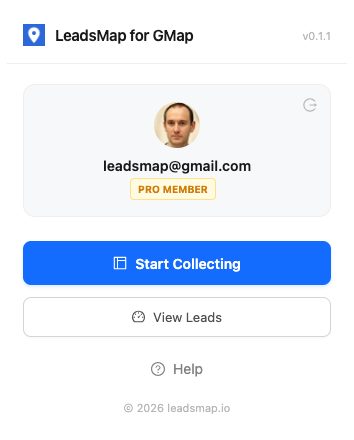
- Click the LeadsMap icon.
- Choose Start Collecting. The side panel opens beside the current window.
- If the panel reports that you are not on Google Maps, use Open Google Maps, run a search, and return to the panel.
Update an existing install
- Download the new zip and extract it to a new folder.
- Open
chrome://extensions. - Remove the previous LeadsMap entry.
- Click Load unpacked and select the new folder.
Saved campaigns stay on your account. They are not stored inside the extension folder, so replacing the package does not delete them. You still need to be signed in to see them.
Continue with Sign in.