Sign in
Collection saves businesses to a campaign on your LeadsMap account. Sign in with Google before you start a task. Downloading and installing the extension does not require an account.
Before you start
- LeadsMap is installed and pinned. See Installation.
- You can complete a Google sign-in in this Chrome profile.
Sign in from the popup
- Click the LeadsMap icon in the Chrome toolbar.
- If you are not signed in, the popup shows Log In with Google. Click it and finish the Google prompt. Use the Google account that should own the campaigns.
- After sign-in, the popup shows your email and either FREE PLAN or PRO MEMBER.
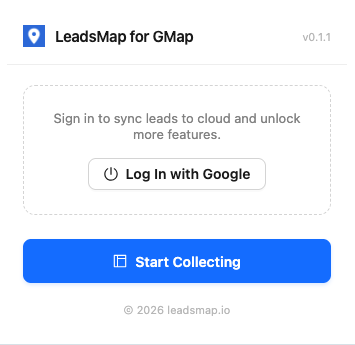
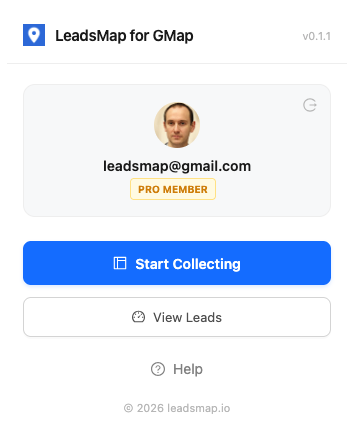
What sign-in unlocks
- Start Collecting opens the side panel. Starting Collect this page or Batch Collect asks you to sign in if the session is missing.
- View Leads opens the dashboard for this account. Campaigns, tags, and enrichment results are stored with the account, so they are available from another computer after you sign in with the same Google account.
Sign out
In the popup, use the sign-out control on the account card. The extension returns to the signed-out state. Campaigns remain on the account and reappear when you sign in again. They are not deleted by signing out.