LeadsMap user guide
LeadsMap is a Chrome extension that reads a Google Maps search and saves the businesses into campaigns. This guide covers installation, collection, the dashboard, and the Free and PRO limits.
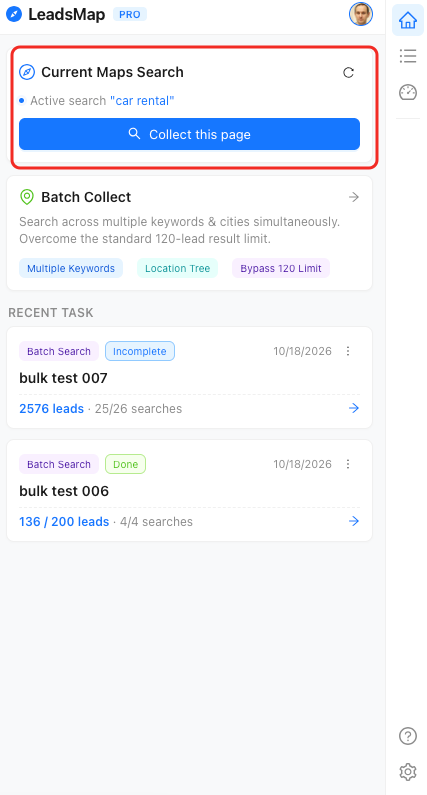
What you can collect
Each saved business includes the name, category, address, phone, website, rating, review count, opening hours, coordinates, Place ID, and CID. From the dashboard you can also visit the business website and add emails and social profiles to the same record.
There are two ways to collect:
- Collect this page uses the search already open on Google Maps.
- Batch Collect builds a queue of keywords and locations. Each search stays within the results Google Maps returns for one query, and the task moves on to the next city or keyword.
Before you start
- Install the extension from the downloaded package. Chrome Web Store installation is not used.
- Sign in with Google. Collection writes leads to a campaign on your account. The download itself does not require an account.
- Open Google Maps, run a search such as dentists in Austin, then open the side panel with Start Collecting.
After the leads are saved
Open View Leads from the extension popup, or the dashboard icon in the side panel. The dashboard is where you search, filter, tag, enrich, and export CSV. Plan limits are listed in Plans and limits.