Export
Export downloads a CSV file of the campaign you are viewing. The Free plan can export the current page or the selected rows, up to 500 leads per day. PRO can also export every matching lead in the campaign, with no daily cap.
Procedure
- Open the dashboard and select the campaign.
- Optional: search or filter first. The export follows the current search, sort, and filters.
- Optional: select rows in the table if you want only those records.
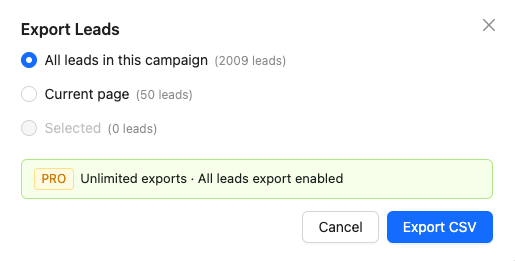
- Click the download button in the toolbar. The window title is Export Leads.
- Choose a scope, then click Export CSV.
Scope
- All leads in this campaign — every lead that matches the current search and filters, not only the rows on screen. This option is marked PRO and is unavailable on the Free plan.
- Current page — the rows on the page you are looking at, after search, sort, and filters. The count next to the option is the page size, or fewer on the last page.
- Selected — the rows you checked. This option stays disabled until at least one row is selected.
Daily limit on the Free plan
Current page and Selected count toward a limit of 500 leads per day. The window shows how many of those 500 are already used. If the scope is larger than the remainder, export is refused and the window reports how many leads you can still export today. The counter resets at midnight.
When the daily limit is already 500, the window offers Upgrade. PRO removes the daily cap and enables the full-campaign scope. See Plans and limits.
The CSV file
The file name is the campaign name, the scope, and the date. Columns are:
- Name, Google Phones, Website Phones, Emails, Website
- Facebook, Instagram, LinkedIn, Twitter/X, WhatsApp, YouTube, TikTok
- Address, Categories, Rating, Reviews, Hours, Lat, Lng, Place ID, CID, Maps URL
Emails combine addresses stored on the lead with addresses found by enrichment. Social columns and website phones come from enrichment. Several values in one cell are separated by semicolons.