Collect this page
Collect this page reads the Google Maps search that is already open and saves those businesses into one campaign. Use it when you have a single keyword and place on screen. Use Batch Collect when you need many keywords or many cities.
Before you start
- You are signed in.
- A Google Maps tab is open on a search results list, not on the empty map.
- No other LeadsMap task is running. Finish or pause it first.
Procedure
- On Google Maps, search for the businesses you want, for example plumbers in Leeds.
- Click the LeadsMap icon and choose Start Collecting.
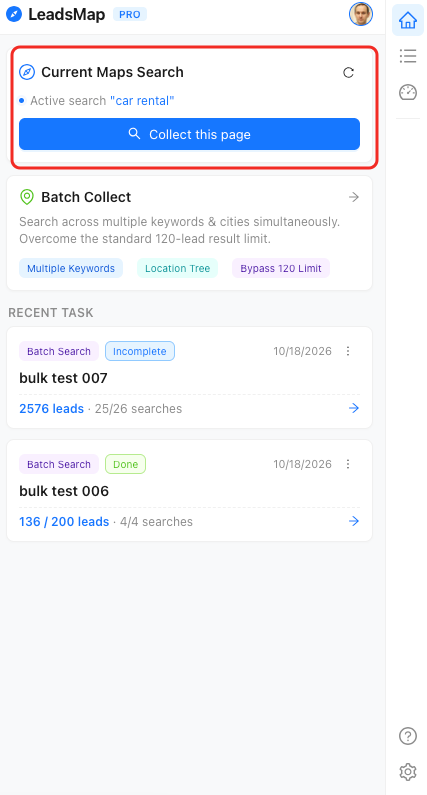
- On Home, check Current Maps Search. A ready search shows Active search and the query in blue. Click Collect this page.
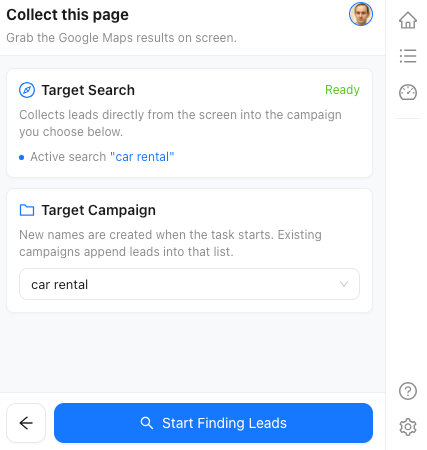
- On the next screen, confirm Target Search still shows the same query and the status Ready.
- Under Target Campaign, choose an existing campaign or create one. A new name is created when the task starts. An existing campaign receives the new leads in that list. If you have not chosen a campaign, LeadsMap suggests the current search text as a new name.
- Click Start Finding Leads.
What you should see
The side panel switches to the progress view for that task. Leads appear in the campaign as they are saved. Open View Leads from the popup, or the dashboard icon on the side panel, to inspect the campaign. Progress controls are described in Tasks and progress.
If the button stays disabled
- Not on Google Maps or Enter a search: the focused tab is not a Maps search. Open Maps, run the search, then use the refresh control on the Home card.
- Choose or create a campaign first: type a campaign name in the field and click Campaign, or pick one from the list.
- Finish or pause the current task first: another task still owns the collector. Pause or finish it from Tasks.
- Campaign limit reached: the Free plan allows 100 campaigns. Reuse an existing campaign or see Plans and limits.