Batch Collect
Batch Collect builds a queue of searches from your keywords and locations, then runs them one after another. Each search stays inside the results Google Maps returns for that query. The task continues with the next keyword or city, so the campaign can grow past the roughly 120 results of a single search.
Before you start
- You are signed in.
- No other task is running.
- You know the country, the places inside it, and either business categories or your own keywords.
Open the wizard
- Click the LeadsMap icon and choose Start Collecting.
- On Home, open Batch Collect.
The wizard has three steps: Search Scope, Target & Run, and Confirm.
1. Search Scope — keywords
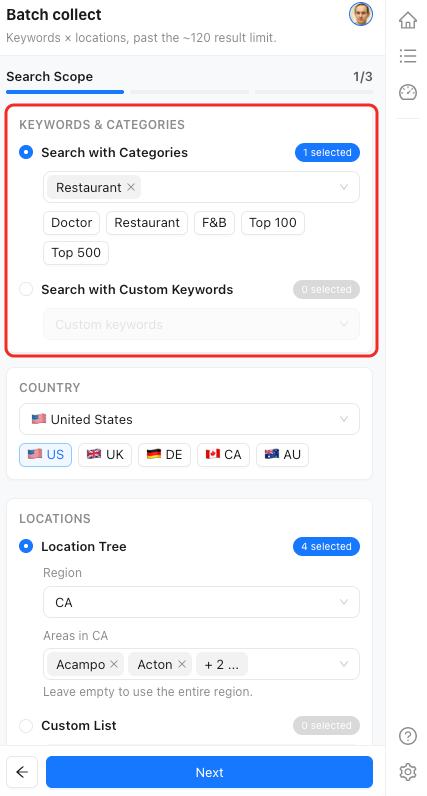
Choose one keyword mode. The two modes are not combined.
- Search with Categories. Search the category list, or use a shortcut: Doctor, Restaurant, F&B, Top 100, or Top 500. The badge shows how many categories are selected.
- Search with Custom Keywords. Add each phrase with the Keywords button. These are matched as the text you typed.
2. Search Scope — locations
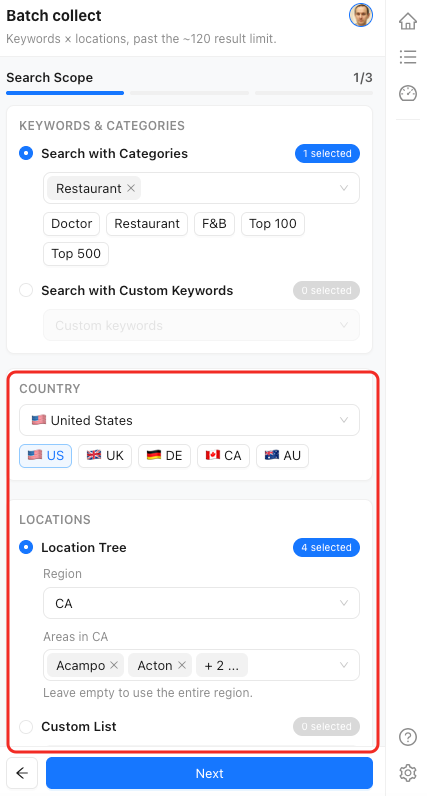
Locations are on the same step, under the keywords.
- Select a Country. United States, United Kingdom, Germany, Canada, and Australia are offered as shortcuts. Other countries are in the full list.
- Under Locations, choose Location Tree or Custom List.
- In Location Tree, select a Region. Then, if the region has smaller areas, select them under Areas. Leave Areas empty to use the entire region.
- In Custom List, type each place and click Locations to add it.
- Click Next. Next stays disabled until at least one keyword and one location are selected, and a country is set.
3. Target & Run
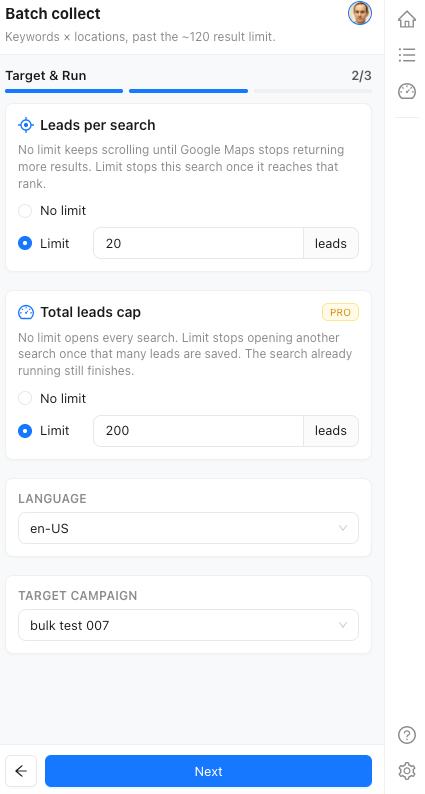
Set how far each search goes, how far the whole task goes, the Maps language, and the campaign.
- Leads per search. No limit scrolls until Google Maps stops returning results for that query. Limit stops that search once it reaches the rank you enter.
- Total leads cap. On the Free plan this is fixed at 200 leads. LeadsMap does not open another search after 200 leads are saved. The search already running is allowed to finish, so the saved count can go slightly past 200. PRO can choose No limit or set another cap. See Plans and limits.
- Language. This is the language used for the Google Maps searches in the queue.
- Target Campaign. Choose an existing campaign or add a new name. New names are created when the task starts. Existing campaigns append leads into that list.
Click Next when a campaign is selected and, if you set a per-search limit, that limit is at least 1.
4. Confirm and launch
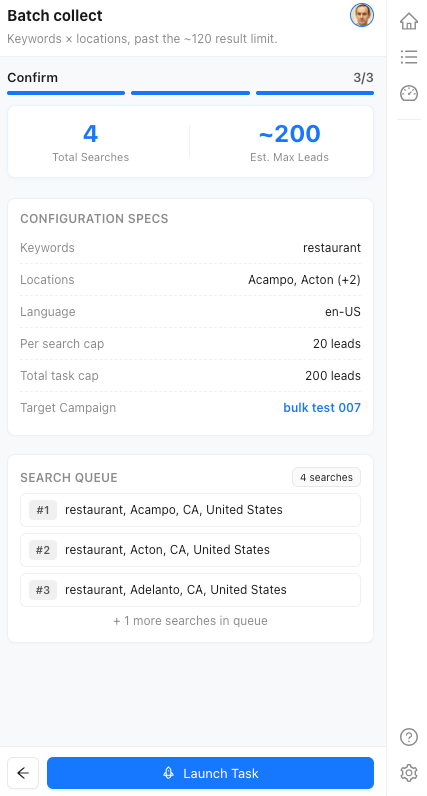
Confirm shows:
- Total Searches — the number of keyword and location combinations in the queue.
- Est. Max Leads — an upper estimate from the caps, not a promise of how many businesses Google Maps will return.
- A short preview of keywords, locations, language, per-search cap, total task cap, and the target campaign.
- Search Queue — the first searches, with a count of any further searches.
Click Launch Task. The side panel opens the progress view. Keep Chrome able to load Google Maps while the task runs. Use Pause when you need to stop and resume later. See Tasks and progress.