Tasks and progress
Every Collect this page run and every Batch Collect run is a task. The progress view shows how many searches have finished and how many leads are saved. The Tasks list keeps paused and finished tasks so you can continue or open the campaign.
While a task is running
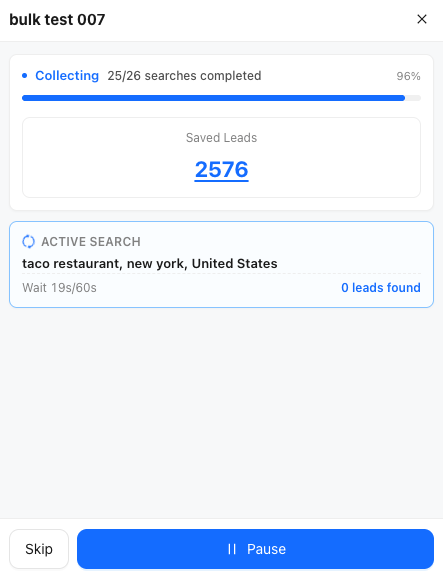
The progress view shows:
- The campaign name.
- How many searches are complete, out of the queue, and a progress bar.
- Saved Leads. If the task has a total cap, the count is shown against that cap. The number opens the dashboard.
- Active Search — the query in progress, and, when a per-search limit is set, how far that search has gone.
Controls while the status is collecting:
- Pause stops the current search so you can resume it later.
- Skip saves leads already found for this search and moves the task on. Confirm the prompt before the search is skipped.
Paused tasks
When a task is paused you can:
- Continue — resume. If the pause happened between searches, Continue starts the next search. If the current search was interrupted, Continue retries it.
- View Leads — open the dashboard when at least one lead has been saved.
- Quit — leave the task. Searches that have not been saved are dropped. Confirm the prompt.
On PRO, the paused view can change the total leads cap before you continue. On the Free plan the cap stays at 200. If the cap is already filled, Continue stays disabled until the cap is raised. The Free plan cannot raise it.
When the task finishes
The status changes to finished and the active search reports that the search was saved. Click View Leads to open the campaign in the dashboard.
The Tasks list
- Open the side panel with Start Collecting.
- Click the list icon. The header reads Tasks.
Each row shows the task name, progress through its searches, and how many leads were saved. From the row menu:
- Continue — available when the queue is not finished. This reopens the progress view for that task.
- Leads — opens the dashboard on that task's campaign, when the task has saved leads.
- Template — available for a Batch Collect task that used categories or the location tree. It loads those keywords and locations back into the wizard so you can edit them and launch again.
- Delete — removes the task record. Deleting a task does not delete the leads already stored in the campaign.
Click the task name to rename it. Home also lists up to two recent tasks with the same actions.
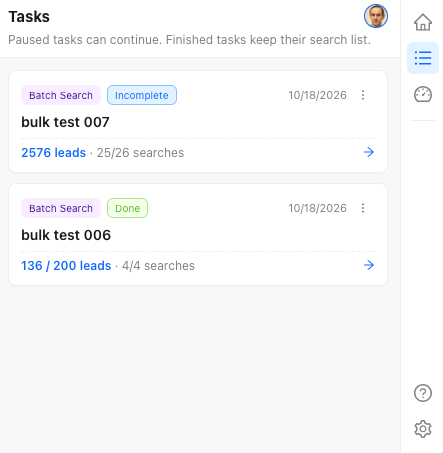
If the list is empty, the panel shows No tasks executed yet and Start First Task, which returns you to Home.