Collection settings
Collection settings control how long LeadsMap waits between scroll requests, how long it waits for a Maps page, how many times it retries a stalled search, and whether it keeps a partial list. Changes are stored in this browser and apply to later searches.
Open settings
- Open the side panel with Start Collecting.
- Click the gear icon at the bottom of the icon rail. The header reads Settings.
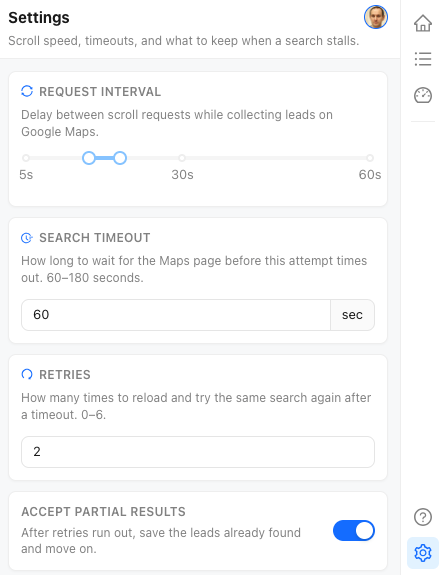
Request interval
This is the delay between scroll requests while leads are collected on Google Maps. The range is 5 to 60 seconds. Drag either end of the slider. A longer interval is slower and gives the Maps page more time to load the next results. A shorter interval finishes a search sooner.
Search timeout
This is how long LeadsMap waits for the Maps page on one attempt before that attempt times out. The allowed values are 60 to 180 seconds, in steps of 30 seconds. Increase it when pages are slow to load. Decrease it when you would rather fail fast and retry.
Retries
After a timeout, LeadsMap reloads the same search and tries again. Retries can be set from 0 to 6. Zero means a timed-out search is not reloaded.
Accept partial results
When this switch is on and the retries are used up, LeadsMap saves the leads already found for that search and moves on. When it is off, a search that never completes does not keep a partial list. Saved leads still follow the campaign rules in Plans and limits.
These settings do not change the Free plan task cap of 200 leads, the per-search limit, or the campaign you selected in the wizard. Set those in Batch Collect.