Campaigns and the lead table
The dashboard is the list of campaigns and the leads inside the one you select. Open it after you are signed in. Collection creates and fills campaigns; the dashboard is where you review them.
Open the dashboard
- In the extension popup, click View Leads. This button is shown after you sign in.
- In the side panel, click the dashboard icon on the icon rail.
- From a task row, choose Leads. The dashboard opens on that task's campaign.
If the page asks you to sign in, use the same Google account you used in the extension.
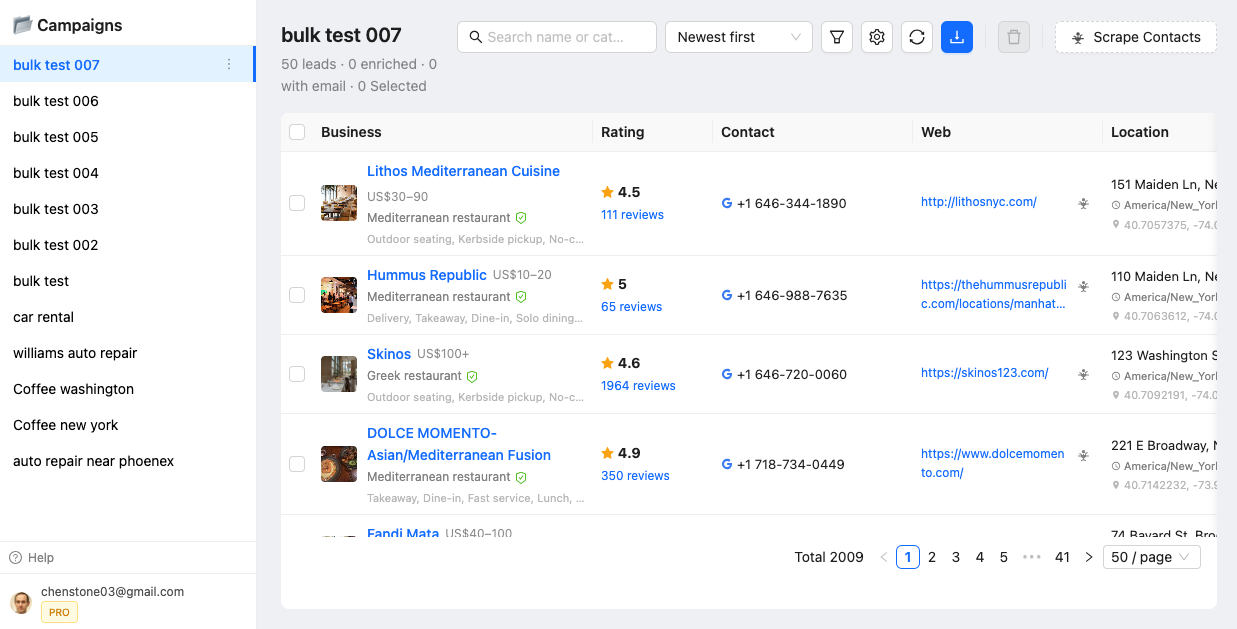
Campaigns
The left column lists your campaigns. Select one to load its leads. When you have many campaigns, a search field filters the list by name.
Campaigns are created when a task starts with a new name, from Collect this page or Batch Collect. Choosing an existing name adds leads to that campaign. Businesses already stored in the campaign, matched by Place ID, are not inserted again.
Open the menu on a campaign to Rename it. Renaming does not move the leads. The Free plan allows 100 campaigns and 10,000 leads in each one. PRO removes both caps. See Plans and limits.
The lead table
The table shows the selected campaign. You can:
- Search with Search name or category. The list updates as you type.
- Sort by Newest first, Oldest first, Rating ↓, Rating ↑, or Most reviews. Rating ↑ lists lower ratings first.
- Choose visible columns with the gear button. The default columns are Business, Rating, Contact, Web, Tags, and Location. Opening Hours and Meta can be turned on. The choice is remembered in this browser.
- Refresh the table with the reload button.
- Select rows and delete them with the delete button. Confirm the prompt. Deleted leads are removed from the campaign.
- Change the page size with the pager at the bottom of the table. The default page size is 50.
Narrower rules — website, email, claim status, rating, reviews, and tags — are in Filters, search, and sort.
A single lead
Open a lead to see the Google phone and website next to emails and social profiles collected later, and to open the Maps listing, the website, or the reviews. Tags and the activity log for that lead are in Tags and activity.