Filters, search, and sort
Search and sort are available on every plan. Filters narrow the selected campaign before you export or enrich. They apply only to the dashboard view. They do not delete leads that fall outside the filter.
Search and sort
- Open the dashboard and select a campaign.
- Type in Search name or category. Matching is against the business name and category. Clear the field to restore the full campaign, subject to any filters still applied.
- Choose a sort: Newest first, Oldest first, Rating ↓, Rating ↑, or Most reviews.
Open the filter panel
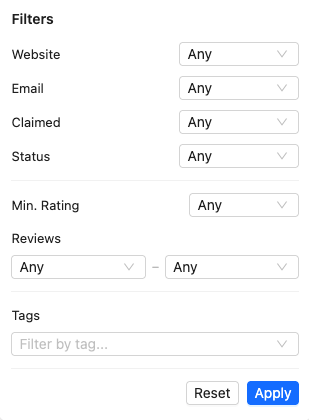
Click the filter button in the toolbar. Set any combination of the following, then click Apply.
- Website, Email, and Claimed — each is Any, Has, or No. Claimed means the business listing is claimed on Google.
- Status — Any, Active, or Closed.
- Min. Rating — Any, or a minimum from 1 to 5 stars.
- Reviews — a minimum and a maximum. Preset bounds include 1, 10, 50, 100, 500, and, for the maximum, 1,000 and 5,000+. If the minimum is higher than the maximum, LeadsMap swaps them when you apply.
- Tags — one or more labels created in Tags and activity. A lead matches if it has one of the selected tags.
After you apply
The table reloads from the first page. Active filters appear as chips above the table. Close a chip to remove that rule. Reset inside the panel clears every filter and shows the campaign again.
Export uses the current search and filters. A current-page export contains only the rows on screen. A full-campaign export, on PRO, contains every lead that matches. See Export.