Tags and activity
Tags and the activity log are included on every plan. Tags are labels you define, such as a territory or a follow-up stage. The activity log records tag changes and notes you write on a lead.
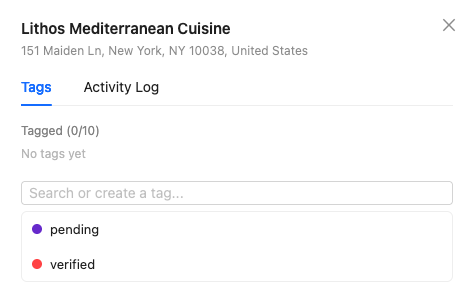
Create a tag and apply it
- In the dashboard, open a lead and select the Tags tab.
- Type a new name. If that name does not exist yet, create it and pick a color. The tag is saved on your account and can be used on other leads.
- Click an existing tag to add it or remove it from this lead. The header shows how many tags are on the lead.
A lead can have at most 10 tags. Adding an eleventh tag is refused with the message that each lead can have at most 10 tags. Remove one before adding another.
Hover a tag in the list to rename it or change its color. Deleting a tag removes it from every lead that used it. Confirm the prompt before you delete.
Filter by tag
Open Filters, choose one or more tags, and click Apply. The table shows leads in the current campaign that carry at least one of those tags.
Activity log
- Open the lead and select Activity Log.
- Adding or removing a tag writes an entry on its own. You do not need to log the tag change again.
- To record anything else, type in Write a follow-up note... and save the note. Notes stay on that lead.
The log loads in pages. Scroll to load older entries. Tag edits refresh the log immediately.